OptiKey Free On-screen Keyboard for Eye-Tracking AAC
Author: Thomas C. Weiss
Published: 14 Sep 2015 - Updated: 26 May 2026
Publication Type: Product Release, Update
Table of Contents:
Synopsis - Definition - Overview - Insights, Updates - Related Content
Synopsis
This information presents an overview of OptiKey, a free open-source assistive on-screen keyboard for Microsoft Windows designed to give people with speech and motor limitations - including those living with Amyotrophic Lateral Sclerosis (ALS) - a low-cost alternative to expensive augmentative and alternative communication (AAC) hardware. The article describes how the software pairs with affordable eye-tracking devices to enable dwell selection typing, mouse control with magnification and text to speech output through a Speak button, and it walks through setup considerations such as processor and screen size requirements. By detailing practical features like swipe typing, auto-complete, precise mouse dragging and adjustable sound feedback, the guide offers useful direction for people with disabilities, caregivers and assistive technology professionals seeking accessible communication tools.*
At a Glance
- 1 - OptiKey supports selections through dwell, physical buttons and assistive switches, and can also be operated with a standard mouse when no eye-tracking device is available
- 2 - Recommended hardware includes at least an Intel i5 processor, a USB 3.0 port and a screen size of roughly 13 to 24 inches, with the Tobii EyeX and Eye Tribe trackers suggested by the developer
- 3 - The Management Console, opened with ALT and M, allows configuration of speech voice, volume and rate, along with sound effects for key selection, mouse clicks, scrolling and multi-key selection events
Topic Definition
- OptiKey
OptiKey is a free, open-source assistive on-screen keyboard application for Microsoft Windows that provides typing, mouse control and synthesized speech for people with significant speech and motor impairments. Designed to work with low-cost eye-tracking hardware, switches or a standard mouse, it uses dwell-based selection to let users compose text, trigger mouse clicks and drags, magnify portions of the screen for precision, and speak typed phrases aloud through built-in text to speech. Originally created as an accessible alternative to expensive and often unreliable AAC devices, OptiKey is particularly associated with supporting individuals living with ALS and other conditions that limit physical interaction with conventional input devices.
Overview
OptiKey is an assistive, on-screen keyboard that runs on Microsoft Windows operating systems. It is designed to be used with an eye-tracking device that is low cost in order to bring mouse control, keyboard control and speech to people who experience speech and motor limitations such as those living with Amyotrophic Lateral Sclerosis (ALS). The software works right out of the box once a person has their eye-tracking device installed and permits selections to be made using dwell selection, as well as physical buttons and assistive devices. If you do not have an eye-tracking device, you can use OptiKey with a mouse.
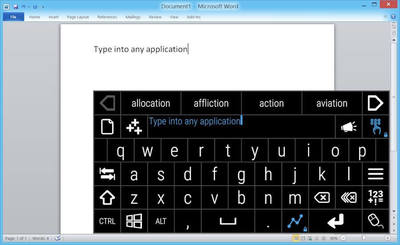
OptiKey was written to challenge the incredibly expensive, hard to use alternative and augmentative communication (AAC) products on the market that are unreliable. The program is entirely open-source and free of charge; forever. OptiKey may be used as an alternative to a physical keyboard, permitting people to type into any application.
The program can automatically insert spaces between words, as well as capitalize letters for a person to increase their typing rate. You can even type entire words and phrases in one selection by, 'swiping,' or using, 'auto-complete.' To communicate with others around you click the, 'Speak,' button and OptiKey will convert what you type into speech.
OptiKey Mouse Functions
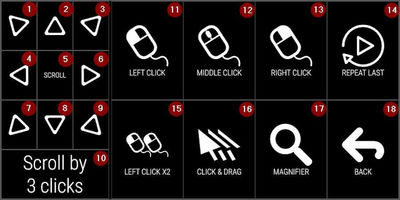
OptiKey can replace your mouse and allow you to click, scroll and drag with exactitude anywhere on your screen. The program's basic mouse actions include basic mouse actions such as left, middle, right click or scrolling. Numbers 11, 12, 13 and 15 as well as numbers 1-9 on the mouse keyboard are performed by selecting the desired mouse action key. A large mouse cursor will be displayed to show where OptiKey is pointing. Direct your attention to the point where you want to perform the mouse action and hold it there. A progress indicator will indicate that you are performing a selection. When the progress indicator completes your mouse action it will be done at that point. When you are scrolling with the mouse, the number of wheel clicks to apply is indicated on key number ten; select this key to change the amount.
Dragging operations, number 16 on the mouse keyboard, is somewhat different because two selections have to be made after you select the drag key. Select point one; the first selection will be where the mouse button is pressed and held down. Then select point two; this is the point to which the mouse cursor is dragged and released.
Using an Eye-Tracking Device
To use an eye-tracking device you will need a tablet, laptop, or desktop computer that meets the minimum requirements of the eye tracker you have chosen. From a broad perspective, you will need at least an Intel i5 processor, at least one USB 3.0 port, as well as a screen size large enough for you to use comfortably. Your screen should measure 13-15" and no more than 24", although it might be possible to use a bigger screen if Windows is limited to only 24" such as if you are using Parallels to run Windows on a Macintosh computer.
Buy one of the low cost eye-tracking devices. The creator of OptiKey recommends the Tobii EyeX tracker or the Eye Tribe one, although the full list of usable eye-tracking devices is available on the OptiKey website. Follow the steps on the, 'Using eye-trackers,' page, it will guide you through the process of setting up your eye-tracker to work with OptiKey. Enjoy controlling your computer and speaking using only your eyes.
OptiKey and the Magnifier
To increase your precision while making mouse selections, you can switch on magnification by pressing or locking down the Magnifier key. You will notice that the Magnification key cycles through three states, UP, DOWN and LOCKED DOWN before returning to UP, which means the magnification functionality can be off, on for just the next mouse action, or permanently on.
Selecting a point is a two step process when you are using the magnifier. Direct your attention to the approximate area you want to click or scroll; a magnified image of the area will be displayed. Direct your attention to precisely where you want to click or scroll in the magnified image to perform the action at that point, or select outside the magnified area to cancel the action.
As for dragging with the Magnifier, or number 16 on the mouse keyboard, is somewhat different because two selections must be made after you select the drag key. Select one point; it will be where the mouse button is pressed and held down. Select another point; this is the point to where the mouse cursor is dragged and released. Bear in mind that the, 'Repeat Last,' key or number 14 on the mouse keyboard permits you to repeat the last mouse action you took, something that may be very useful if you want to scroll down a web page that is long one scroll at time for example.
OptiKey and Sound Settings
With OptiKey selected press, 'ALT,' and, 'M,' on your keyboard to open the Management Console. Select the, 'Sounds,' tab at the top. The Management Console is something that must be accessed using a physical keyboard and mouse. What follows is information on OptiKey and rate, volume and voice.
- Volume: The volume of speech within OptiKey; ranges from 0 to 100.
- Rate: The rate or speed at which the scratchpad text is spoken; it ranges from -10 to +10.
- Voice: The voice to use when OptiKey speaks the contents of the scratchpad. The available set of voices depends upon which TTS (Text to Speech) voices are installed in Windows. More voices can be installed from the Microsoft website, or you may purchase voices through third parties.
- Where sound effects are concerned, OptiKey presents a number of options. For example; 'Info,' is the sound to play when an information window is displayed. The volume may be set from 0 to 100 and the, 'Play,' button previews your changes. Other sound effect settings include the following:
- Key Selection: The sound to play when a key is selected. The volume can be set from 0 to 100 and the, 'Play,' button previews the changes.
- Mouse Scroll: The sound to play when a mouse scroll is simulated. The volume can be set from 0 to 100 and the, 'Play,' button previews the changes.
- Mouse Click: The sound to play when a mouse single click is simulated. The volume can be set from 0 to 100 and the, 'Play,' button reviews the changes made.
- Mouse Double Click: The sound to play when a mouse double click is simulated. The volume can be set from 0 to 100 and the, 'Play,' button previews the changes.
- Multi-Key Selection Ending: The sound to play when a multi-key selection is ending. The volume may be set from 0 to 100 and the, 'Play,' button previews the changes.
- Error: The sound to play when an error notification window is displayed; the volume may be set from 0 to 100 and the, 'Play,' button previews the changes you have made.
- Multi-Key Selection Starting: The sound to play when a multi-key selection is beginning. The volume can be set from 0 to 100 and the, 'Play,' button previews the changes you made.
The purpose of OptiKey is to provide computer accessibility while enabling a person to hopefully avoid the high costs of some hardware. For people who experience ALS for example, OptiKey is a wonderful piece of software. It is freely available for download and use. The creator of OptiKey desires feedback from those who use the software, you will find an email address below to send feedback to concerning the software.
OptiKey V2
OptiKey was written to challenge the outrageously expensive, unreliable and difficult to use AAC (alternative and augmentative communication) products on the market. It is, therefore, fully open-source and free. Forever.
Insights, Analysis, and Developments
Editorial Note: OptiKey occupies an important niche in the assistive technology landscape, demonstrating that capable communication software does not need to carry the price tag historically attached to dedicated AAC devices. By being open source and compatible with consumer grade eye trackers, it lowers the barrier for individuals and families navigating progressive conditions like ALS, where access to communication tools can be both urgent and financially burdensome. The project also illustrates the broader value of community driven development in disability technology, where iterative feedback from real users continues to shape features such as magnified targeting, swipe input and refined sound feedback into something practical for daily life.*
 Author Credentials: Thomas C. Weiss is a researcher and editor for Disabled World. Thomas attended college and university courses earning a Masters, Bachelors and two Associate degrees, as well as pursuing Disability Studies. As a CNA Thomas has provided care for people with all forms of disabilities. Explore Thomas' complete biography for comprehensive insights into his background, expertise, and accomplishments.
* Editorial additions by Ian C. Langtree.